Preparing to work with Julia
1. Installing Julia
One reason that Julia is an appealing language is that it is easy to install, and runs in many different environments.
- Download Julia here
- Follow these instructions to install Julia:
Throughout the semester, we will stress the importance of defining tests before we write code: how can we know if our code is functioning correctly?
To test whether you have installed Julia correctly, try to open a julia terminal (or REPL, for “Read-Evaluate-Print-Loop”). You should see something like this:
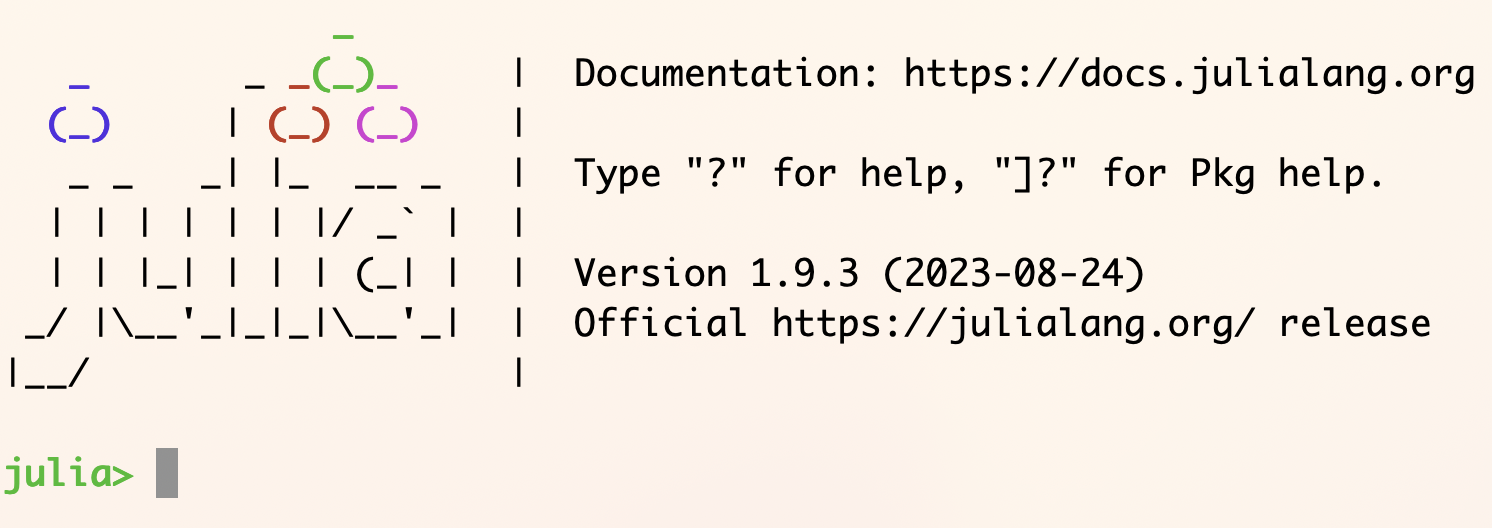
If you do, great! At the julia> prompt, enter exit() to quit the REPL.
2. Setting up Pluto notebooks
For much of our course work, we will use Pluto, a reactive notebook system written in Julia.
To prepare your computer to use Pluto:
- open a Julia REPL, and type
]to enter “package mode.” - at the
pkgprompt, enteradd Pluto. It will take a while to download and build all of the Julia packages that Pluto uses, but you won’t have to repeat this. - When you are done, use the Delete key to return to Julia mode. You may now work in Julia or use
exit()to quit.
To run Pluto:
- open a Julia REPL if you have not already.
- at the
juliaprompt, enterusing Pluto; Pluto.run(). This will start a Pluto notebook server on your computer, and open your default web browser when everything is ready. When you’re through, enterCtl-C(the control key +c) at the Julia prompt to stop the server. This will put you back at thejuliaprompt in your REPL. You may continue to work in Julia or useexit()to quit.